If you’re an assiduous notetaker, you know that it’s hard to put a price on a great writing tablet. The best writing tablets can help you organize your documents and serve as E Ink tablets that run essential apps. They’re also smooth and comfortable to write on—desirable features if you’re jotting down notes for hours at a time. After rigorously testing a dozen options, I determined that the best writing tablet is the . This digital notebook balances a luxe build and no-frills software, and it comes with a backlight for on-the-go or late-night work. After testing these devices for months, here are the best writing and note-taking tablets you can get right now.
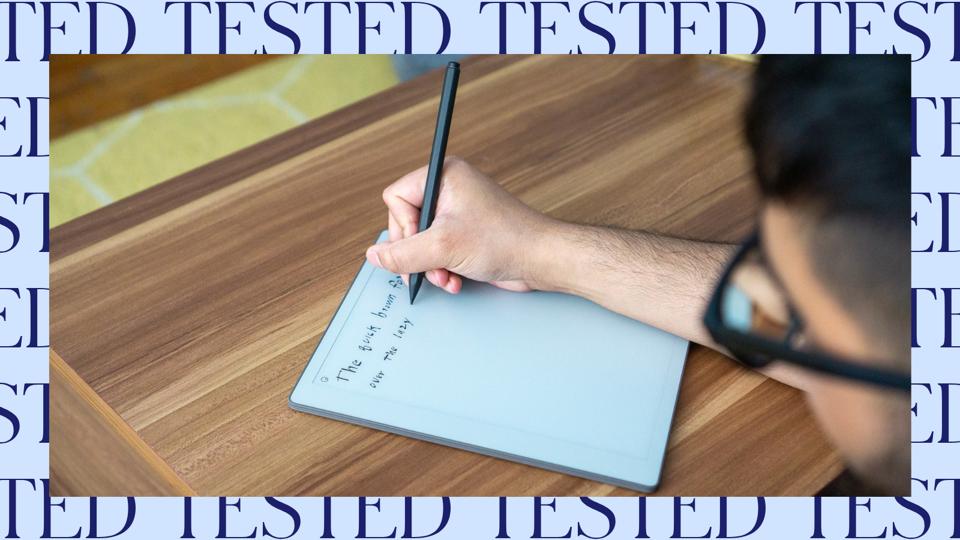

During testing, I looked for three things in a digital notebook: a smooth writing experience, a backlight and highly functional system software to help me stay organized. The does all that while keeping its purpose—a notebook to help you stay focused—as its main mission. The digital notebook offers an 11.8-inch display, the largest screen I’ve tested to date. While some may feel it’s too bulky, as someone who writes with a large script, I found this size ideal. It’s also a delight to write on because it feels like writing on real paper.
A Plain Backlight, Limited Color Options
The design team added a plain white backlight. When I asked about it during a briefing last year, they said that they felt it was just enough to see your notes without distracting you from your work. I’m conflicted: On the one hand, I’ve craved this feature for years on my self-purchased reMarkable 2 (now discontinued). But on the other, I would much prefer a warmer backlight for the comfort of my eyes. Using the light also noticeably reduces the battery life.
The ReMarkable Paper Pro’s color display makes modest use of color; rather than inundate you with thousands of shades, reMarkable focuses on a small handful of pen colors and even fewer highlighting shades. In practice, the execution of these colors on note pages looks and feels excellent. If you choose to “hack” your ReMarkable to get full-color e-books onto the Paper Pro, they don’t look as good as on competitors (namely, the ). But if your main goal is to color code your notes or mark up PDFs, it suffices. Keep in mind that because it’s a distraction-free tablet, you can’t sideload software, but you can send notes to the big names in cloud storage—Microsoft, Google and Dropbox. A recent update allows you to send notes via Slack, too.
Durable Pen And Useful Keyboard Accessory
It’s also important to note that the Paper Pro works with the . I found it to be durable (and kitten-proof). During my year-plus of daily testing, I’ve only had to change the nib once. Even then, it could have lasted longer. If you prefer to combine writing and typing, the keyboard folio, called the is available for $199. If you’re interested in learning more, you can read my full reMarkable Paper Pro review.
The 2026 Forbes Vetted Best Product Awards are here: Explore our 150 top-recommended items across categories after extensive research and testing.
A Casual Option For Budding Notetakers
Like the Paper Pro, the is a no-frills digital notebook. Unlike the Paper Pro, the reMarkable cuts corners to stay affordable; it uses a plastic design, which is lighter but feels noticeably cheaper. It has a 10.3-inch display, which feels like plenty of space to take notes on, and feels smooth to write on. You can bundle the tablet with the reMarkable pen and folio, the latter of which is useful to protect it in your bag while on the go. It uses the Linux-based reMarkable OS software, which allows you to zoom in and out and move up and down the page, and it’s great for lists and plenty more. Touch commands and other responses are fast thanks to the upgraded hardware.
Lasts Up To Three Weeks With Smart Additions
For those who don’t want to worry about battery life, rest assured that the reMarkable Paper Pure lasted me for a couple of weeks during testing, which felt on par with the brand’s three-week claims. That’s partially thanks to the folio. Store it in the case, and the tablet goes to sleep. Remove it, and the tablet wakes up. It doesn’t have a backlight, which helps elongate its lifespan. Still, for those who require a backlight or if you plan to study in darker environments, shop on.
Take Notes In Grayscale, View Them On The App In Color
The reMarkable Paper Pure offers four different colors—black, gray, red and blue—to code your notes, but there’s a catch. The tablet itself is grayscale, so you can’t see the colors as you write. But when you open the app, you can see the notes in color. And, when I wrote about the tablet in my full reMarkable Paper Pure review, I noted that you can see colors across different reMarkable tablets, too.
Meeting Notes Is An Impressive Feature
One of my favorite features packed into this affordable package is Meeting Notes. Integrate your calendar with the tablet, and then tap the meeting note icon located on the homepage. Select the meeting and the software opens a new notebook, automatically populating important details like the meeting title, date and a “Notes” heading. When you’re finished jotting notes, it’s easy to convert your scribbles to text and share them. Just keep in mind that the software converts literally everything into text, including notes you crossed out.
The , when announced in 2022, was a game changer for fans of the Amazon Kindle line: It was a dual notebook/e-reader combo. The newer 2024 Kindle Scribe keeps the same 10.2-inch display with an adjustable warm backlight—both the display and backlight are my favorite of all the writing tablets I tested. I can brighten it if needed, or I can dim it so I don’t blind myself while writing on a long-haul flight. It’s especially comfortable on my eyes during long working sessions.
Active Canvas Is Excellent For Annotating Books
Like most readers, the display is only black-and-white, so don’t expect to color code your notes. And while owners of older models can’t write directly on the pages, this latest model finally offers that kind of annotation. Christopher LaBrutto, product manager on the Kindle team at Amazon, says it’s a, “one-of-a-kind in-book writing feature called ‘Active Canvas,’ which automatically creates space for your notes so you never have to cut a thought short.” I’ve found Active Canvas to be a useful way to integrate notes on the page, since you jot your notes, and the software turns it into a box on the page that stays in place if you adjust the text. Amazon might sound like it’s boasting when it calls its own product unique, but the company seems to be standing on firm ground.
Take All Your Books With You, Thanks To Kindle OS
The Kindle Scribe features integration with the Kindle OS, which allows access to the reading library, and thus reduces my carry-on footprint when traveling. And if you splurge on a Microsoft Office 365 subscription, Kindle Scribe also allows you to take notes and create comments in Word. Paired with the Kindle app, you can display marked-up documents on both your phone and tablet; it’s pretty savvy for on-the-go multitasking.
That said, there’s a caveat: the pen. Like most writing tablets on this list, the nibs wear out and have to be replaced occasionally. I found that the Kindle Scribe required a new nib every month or so. A casual writer or someone who doesn’t press too hard on the display may get more mileage, but the nibs aren’t especially sturdy at the time of this writing.
The is the first Amazon Kindle Scribe device to incorporate color E Ink. You can now make notes in color, including highlighting with a shader pen. It’s also got the suite of Kindle Scribe offerings, including the ability to write notes on the book pages using the same Active Canvas technology as its grayscale sibling. It does feature Google Docs and Microsoft Office integrations, which I found to be useful when storing files on Google Drive or the Microsoft cloud.
Vibrant Colors, Though Some Image Degradation
Colors look vibrant; for those who prefer to color code notes, this E Ink tablet is genuinely useful. That said, artists should look at a dedicated drawing tablet instead, as the colors offered are limited. You can create some digital art, but without the color array of a dedicated drawing tablet.
Built For Notes And E-Reading
For those who want an E Ink writing and reading tablet, and who happen to love comics, this is the writing tablet to get. Its display is large enough so that you can enjoy your comics with great detail in vivid hues. You can expect mild image degradation in color due to the backplate’s structure, but it’s a small price to pay. Also, keep in mind that the Kindle Scribe Colorsoft suffers from the same pen nib issue as its sibling, so if you write frequently, expect to swap your nib monthly.
The is a great choice if you’re looking for a compact writing tablet. At 10.3 inches, the Elipsa 2E has a similar E Ink display size as the Kindle Scribe. Until recently, it was a technology trailblazer for its software integrations which allowed you to write directly on e-book pages. And Kobo does something really cool: While the Kindle Scribes require the Active Canvas technology to create notes on the page, the Kobo Elipsa 2E allows you to write directly on the page, no canvas required. That technology is what cements it the top pick for annotating books.
USB-C Built Into The Pen
Like the reMarkable Paper Pro, the pen requires charging, but unlike the ReMarkable, it doesn’t charge when clipped to the side of the device. But it offers up to 40 hours of battery life, and I never ran out of juice during testing. That said, I found the stylus to be less responsive than either the reMarkable or Kindle writing tablets. There were a couple of times when I thought I jotted something down and it didn’t register on the display. Like the Scribe, it has a smooth surface which feels pretty seamless when I’m writing on it.
Kobo Library Isn’t As Robust As Kindle
The Kobo OS is pretty solid, with a separate notebook panel for creating notes. Choose from a series of templates to get the best one for your needs, which I found was helpful for organizing notes. Even better: You can choose from 15 different file types, including EPUB, PDF and many more. If you’re using this as a two-in-one notebook and e-reader, keep in mind that the Kobo library isn’t as robust as Kindle. But you can hook up your library card to reserve and download e-books—unlike the Kindle, which requires you to sideload the books rather than directly download them.
While digital notebooks are designed for portability, when packed with a laptop and other commuting gear, they can contribute to an aching shoulder by day’s end. In part, that’s why I loved testing the . The Paper Pro Move’s 7.3-inch display may be smaller than its siblings, but it’s lightweight and easy to toss into my work bag. Its chassis is also thicker, which helped me to hold it in one hand while I took notes with the other.
Nearly The Same Tablet As The Paper Pro, With A Smaller Footprint
The Paper Pro Move is nearly identical to the Paper Pro, only in a smaller footprint with a minor processor change. I found the smaller processor doesn’t affect its responsiveness. It keeps the same software offerings, including Google, Microsoft and Slack integrations, and you can use it horizontally or vertically. Battery life can last up to two weeks on a single charge, but it reduces faster if you turn on the backlight.
The pen is the same durable option offered with the reMarkable Paper Pro, too. I recommend adding a case—I’ve dropped it a few times with the case on and found it prevented accidental screen cracks.
Notes Don’t Scale Consistently Across Other reMarkable Devices
I noted during testing the reMarkable Paper Pro Move’s largest drawback is its template integration. Odds are if you’re investing in the Paper Pro Move, you’re not also getting the reMarkable Paper Pro. But if you do, keep in mind that notes in Paper Pro and the Paper Pro Move scale inconsistently. Rotate from horizontal to vertical, and pages shrink to an unusable size. Staying horizontal isn’t perfect either—my notes don’t align with page breaks, leaving me guessing how they’ll fit. It’s frustrating, but this is a larger issue that pervades the entire reMarkable family: None of my notes scale appropriately across any of their devices. You can also read more about the device in my reMarkable Paper Pro Move review.
Other Writing Tablets I’ve Tested
While the writing tablets I’ve tested represent some of the best options on the market, these other models may still be worth your consideration. Here are other models I tested and liked but didn’t quite make the cut.
(Forbes Vetted score: 4/5 stars): The smaller sibling to the Kobo Elipsa 2E, the Kobo Libra Colour features a seven-inch color E Ink display so you can read and jot notes in color. It comes with the Elipsa 2E’s useful ability to write directly on pages. Keep in mind that it still uses the same stylus, too, which means it may be less responsive than the reMarkable and Kindle writing tablets. Still, it’s a good balance if you want portability and the Kobo ecosystem. It also doubles as an e-reader.
reMarkable 2 (Forbes Vetted score: 4/5 stars): Until the reMarkable Paper Pro’s launch, the was my go-to writing and note-taking tablet. The 10.2-inch display feels like there’s plenty of space for me to jot notes. For those who don’t want to worry about battery life, rest assured that the reMarkable 2 has lasted me for a couple of weeks despite hours of daily use. That said, the pen is not especially durable. If you’re careful, the pen should last some time, but if you’re prone to accidents, get something sturdier. While this unit is discontinued now, you can buy them used and refurbished.
Writing Tablets I’m Currently Testing
While I’ve tested a dozen tablets, new models have come out. These are the latest devices I’m testing.
: The TCL Note A1 Nxtpaper tablet is a digital tablet, complete with all your favorite Android app integrations, right on the device. The pen also features a lasso button which can help you copy, save and tuck notes away into an inspiration area. It also features multiple calendar and voice capture integrations to stay on top of meetings and summarize them. I’m still testing, but this tablet promises to be one of the more robust writing tablets I’ve used.
: The Apple iPad Mini has Apple’s signature Liquid Retina Display, which promises gorgeous, accurate colors to help write color-coded text, add sketches to your notes and more. Because it doubles as a full-fledged tablet, it also offers Apple Intelligence and Siri integrations. I’ve just started testing, so stay tuned for my verdict here.
How I Tested The Best Writing And Note-Taking Tablets
As the consumer tech and electronics editor at Forbes Vetted, notes are my lifeline to planning coverage, absorbing new product information and maintaining my to-do lists. When I evaluated the best writing tablets on the market, I took into account not only professional uses, but also personal ones for journaling, general writing and more.
- Design: I considered each writing and note-taking tablet’s design, including its weight, display size and thickness. I also reviewed backlight designs, testing to see how each backlight performed across a variety of situations, from inside airplanes to working in an office setting.
- Software: I dove into the finer details of each device’s software, checking the various operating systems for ease of use, file type support and integration compatibility such as Microsoft Office and Google Docs. I also compared how each display performed.
- Storage: Notes can take up a ton of space, especially larger PDFs. I considered file types and how they affect storage space on each device.
- Writing stylus: Your writing stylus is the most essential tool for ensuring a smooth note-taking experience. I evaluated writing styluses based on battery life where applicable, nib durability and comfort with and without my personal grips.
How To Choose The Best Writing And Note-Taking
Tablet For Your Needs
When choosing the best writing tablet to fit your daily needs, it’s important to take a few features into consideration.
Display Type
The display type you choose depends on how you intend to use your writing tablet. “Unlike all the old LCD or OLED screens emitting bright light with glare, the screen of an E Ink gadget can imitate the natural feel of ink on paper,” says Matthias Woggon, CEO and cofounder at eyefactive GmbH. If you’re using your writing tablet for more, consider both options: E Ink versus an LCD or OLED display. “LCD and OLED displays offer punchier colors and faster refresh rates, which is what makes them far more suited to multimedia work, like video editing or gaming.”
Software Compatibility
Similar to the display type, the ecosystem—and the software compatible across ecosystems—is equally important. “Most readers and writers are looking for something to complement their current work productivity flow. You need a reliable tool that can integrate into your existing file storage and management system without causing any bottlenecks or data silos,” says Seth Geftic, vice president of product marketing at Huntress Labs. While almost all of the writing tablets tested are compatible with iOS and Windows/Android systems, double-check your new writing tablet works with your system of choice. “The vast majority of writing tablets offer cloud sync, but if you need access to a more specific form of file sharing, you should double-check that a tablet supports it,” says Geftic.
Stylus Build And Features
As a writer myself, I’m particularly meticulous about my styluses—and no two styluses are the same. Some of them, like the reMarkable Paper Pro’s pen, require charging every so often, while others, like the Kindle Scribe, don’t. “A responsive stylus, with low latency, enhances the natural feel of writing or drawing,” says Woggon, who uses the reMarkable 2 in his daily workflow. But the stylus coincides with other important features, too: “Features like palm rejection and pressure sensitivity go hand in hand with providing a seamless experience,” he adds.
And, of course, if you’re not particularly keen on a stylus design, don’t forget you can tweak them with a little more research, according to Geftic. “You can find heaps of pencil grips and heads that add friction on screens, which can help make the writing experience more realistic. You could go for a less realistic writing tablet (like an iPad) and then add these pencil modifiers to bring it closer to a reMarkable experience.”
Why Trust Forbes Vetted
This guide and its updates are overseen by the Forbes Vetted tech team, which has expertise in a wide variety of consumer tech and electronics.
- The consumer tech and electronics team is led by Rebecca Isaacs, who has more than seven years of experience reviewing and writing about consumer tech, including more than three at Forbes Vetted.
- Isaacs has tested most writing tablets on the market, including the reMarkable Paper Pro Move, the reMarkable Paper Pure, the Amazon Kindle Scribe and more. She has also compared multiple tablets, including testing the Amazon Kindle Scribe versus the reMarkable Paper Pure, to help consumers decide which is best for their needs.
Our Experts
- Matthias Woggon, CEO and cofounder at , a tech company that focuses on creating innovating touchscreen technologies
- Seth Geftic, vice president of product marketing at , a daily writing tablet user